






Laptop Lagging While Gaming – Performance Tips
March 18, 2026
Introduction
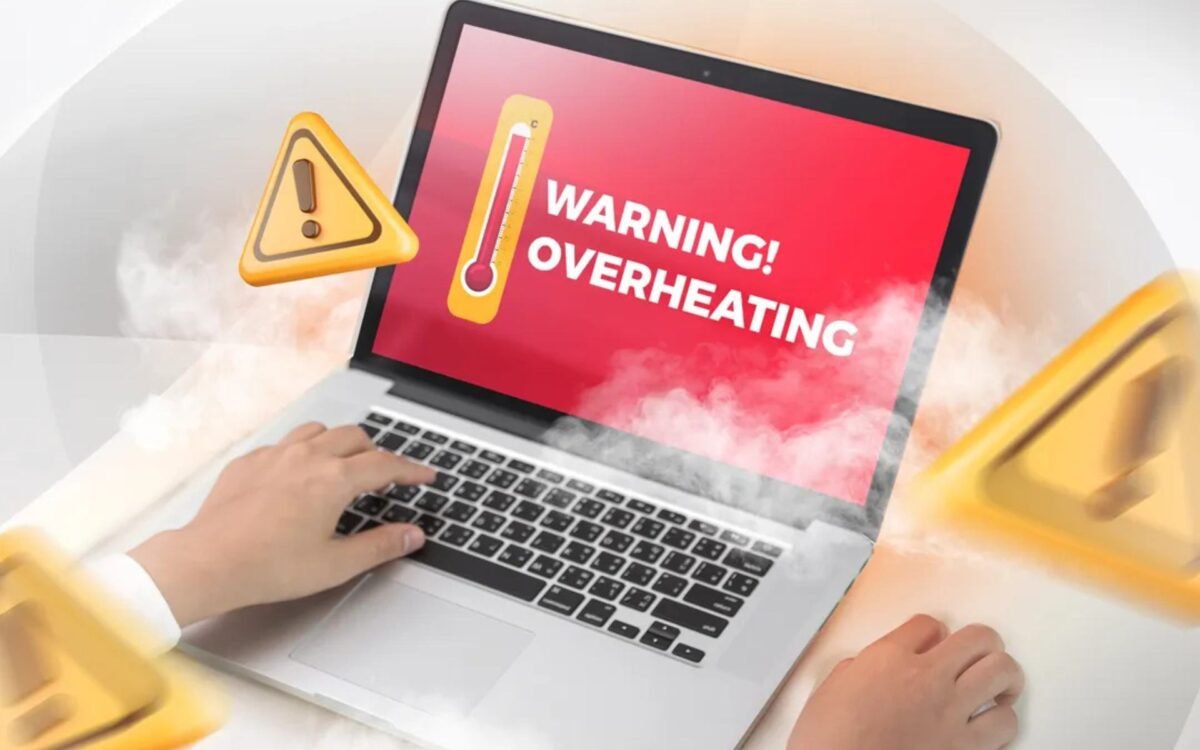
Laptop heating is one of the most common problems faced by users, especially those who use their devices for long hours. Whether you are working, gaming, editing videos, or attending online meetings, excessive heat can slow down your system, reduce performance, and even damage internal components over time.
While occasional warmth is normal, continuous overheating is a sign that something is wrong. If not addressed properly, it can lead to system crashes, battery issues, and hardware failure. The good news is that laptop heating problems can be fixed permanently by understanding the causes and applying the right solutions. This guide will walk you through everything you need to know to keep your laptop cool and running efficiently.
Why Laptops Overheat
Laptops generate heat because of the internal components such as the CPU, GPU, and battery. These parts work continuously and produce heat during operation. Normally, cooling systems like fans and heat sinks help regulate temperature.
However, overheating occurs when the cooling system cannot dissipate heat effectively. This can happen due to dust buildup, blocked vents, heavy usage, or inefficient thermal management. Identifying the root cause is essential to fixing the problem permanently.
Signs of Laptop Overheating
Overheating laptops often show clear warning signs. The device may become unusually hot to touch, especially near the keyboard or bottom panel. You may also notice loud fan noise as the system tries to cool itself.
Other signs include slow performance, frequent freezing, unexpected shutdowns, and reduced battery life. In severe cases, the laptop may restart automatically to prevent damage. Recognizing these symptoms early can help you take action before serious issues occur.
Keep Your Laptop on a Flat Surface
Using your laptop on soft surfaces like beds, cushions, or laps can block air vents and restrict airflow. This prevents proper heat dissipation and causes the system to heat up quickly.
Always place your laptop on a hard, flat surface such as a desk or table. This allows air to circulate freely and helps maintain optimal temperature.
Clean Dust from Vents and Fans
Dust accumulation is one of the biggest causes of overheating. Over time, dust can block air vents and reduce the efficiency of cooling fans.
Regular cleaning of vents and internal components can significantly improve airflow. Using compressed air to remove dust from vents is a simple and effective solution. For deeper cleaning, professional servicing may be required.
Use a Cooling Pad
A cooling pad is an external accessory that provides additional airflow to your laptop. It helps reduce temperature by improving ventilation.
Using a cooling pad is especially beneficial for heavy tasks like gaming or video editing. It is a simple investment that can make a noticeable difference in temperature control.
Avoid Overloading the System
Running too many applications at once can put excessive load on the CPU and GPU, leading to increased heat generation.
Closing unnecessary programs and avoiding heavy multitasking can reduce system load and keep temperatures under control. Focus on running only essential applications when needed.
Manage Background Processes
Background processes can consume system resources without your knowledge. These processes increase CPU usage and contribute to overheating.
Monitoring and managing background tasks can help reduce unnecessary load. Disabling unwanted startup programs also improves system efficiency.
Update System and Drivers
Outdated software and drivers can cause inefficient performance, leading to increased heat generation.
Keeping your operating system and drivers updated ensures better optimization and improved thermal management. Updates often include bug fixes and performance enhancements.
Replace Thermal Paste
Thermal paste is applied between the CPU and heat sink to improve heat transfer. Over time, this paste can dry out and lose effectiveness.
Replacing thermal paste can significantly reduce temperatures and improve cooling efficiency. This is a more advanced solution and may require professional assistance.
Adjust Power Settings
Power settings play an important role in controlling performance and heat generation. High-performance modes increase CPU usage and generate more heat.
Switching to balanced or optimized power modes can help manage temperature without significantly affecting performance. Adjusting these settings can make a noticeable difference.
Keep Laptop in a Cool Environment
Environmental factors also affect laptop temperature. Using your laptop in hot or poorly ventilated areas can increase heat levels.
Keeping the laptop in a cool, well-ventilated space helps maintain stable temperatures. Avoid direct sunlight and high-temperature environments.
Monitor Temperature Regularly
Keeping track of your laptop’s temperature can help identify overheating issues early. Monitoring tools can show real-time temperature levels of CPU and GPU.
By observing these readings, you can take preventive action before the system reaches critical temperatures.
Upgrade Hardware if Needed
Older laptops may struggle with modern applications, leading to overheating due to constant high usage.
Upgrading components like RAM or switching to an SSD can reduce system load and improve performance. This indirectly helps in reducing heat generation.
Limit Gaming and Heavy Tasks Duration
Continuous heavy usage can cause the laptop to heat up significantly. Taking breaks between gaming sessions or intensive tasks allows the system to cool down.
Avoiding prolonged usage helps maintain a stable temperature and prevents overheating.
Disable Unnecessary Features
Certain features such as animations, visual effects, and background services can increase system load.
Disabling unnecessary features can reduce CPU usage and help keep the laptop cooler.
Check for Malware or Viruses
Malware can run hidden processes in the background, increasing CPU usage and causing overheating.
Running regular antivirus scans ensures that your system is free from harmful programs that may affect performance.
Ensure Proper Airflow
Proper airflow is essential for maintaining optimal temperature. Blocking vents or using the laptop in enclosed spaces can trap heat.
Ensuring that vents are clear and unobstructed allows hot air to escape efficiently.
When to Seek Professional Help
If your laptop continues to overheat despite trying all solutions, it may indicate a deeper hardware issue.
Problems such as faulty fans, damaged heat sinks, or internal component failure require professional diagnosis and repair.
Preventing Laptop Heating Permanently
Preventing overheating requires consistent maintenance and mindful usage. Regular cleaning, proper ventilation, and optimized system settings can keep your laptop cool in the long run.
Avoid overloading the system and ensure that your laptop is always used in a suitable environment. Following these practices can help you maintain performance and extend the lifespan of your device.
Conclusion
Laptop heating issues can affect performance, reduce lifespan, and cause serious damage if ignored. However, by understanding the causes and implementing the right solutions, you can fix overheating problems permanently.
From simple steps like cleaning vents and adjusting settings to advanced solutions like replacing thermal paste, there are multiple ways to keep your laptop cool. With proper care and regular maintenance, you can ensure smooth performance and avoid overheating issues in the future.


