



Laptop Screen White Dots – Causes, Fixes and Prevention Tips
March 13, 2026
How to Fix Laptop Heating Issue Permanently
March 21, 2026
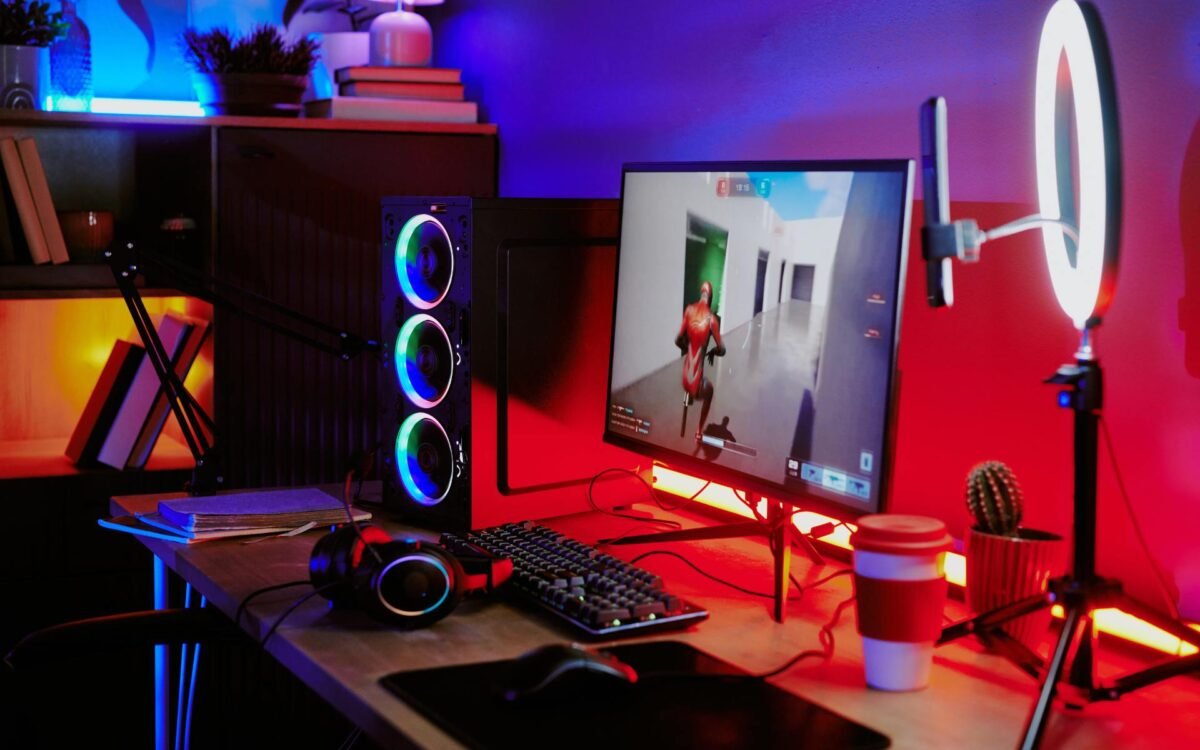
Gaming on a laptop can be an exciting experience, but it quickly becomes frustrating when performance issues like lag, stuttering, or frame drops start affecting gameplay. Many users face the problem of their laptop lagging while gaming, even when the device seems powerful enough to handle modern titles. This issue can impact reaction time, graphics quality, and overall gaming enjoyment.
Laptop lag during gaming is not always caused by a single factor. It is usually the result of multiple elements such as hardware limitations, overheating, outdated drivers, background applications, or incorrect system settings. Understanding these causes and applying the right performance tips can significantly improve your gaming experience and help you get smoother gameplay without upgrading your device immediately.
Understanding Why Laptops Lag While Gaming
Gaming performance depends on how efficiently your laptop processes graphics, handles memory, and manages system resources. When any of these components struggle to keep up with the demands of a game, lag occurs.
Unlike desktops, laptops have limited cooling systems and compact hardware designs, which can lead to overheating and reduced performance. Additionally, running high-end games on low or mid-range configurations can overload the CPU and GPU, causing frame drops and delays. Recognizing these limitations is the first step toward optimizing your system.
Adjusting In-Game Graphics Settings
One of the most effective ways to reduce lag is by lowering the in-game graphics settings. High-resolution textures, shadows, reflections, and anti-aliasing require significant processing power.
Reducing settings such as resolution, texture quality, shadow detail, and visual effects can greatly improve frame rates. Many modern games include preset options like low, medium, and high, which allow users to quickly adjust performance levels. Choosing the right balance between visuals and performance can make gameplay smoother.
Keeping Graphics Drivers Updated
Graphics drivers play a crucial role in how games run on your laptop. Outdated or incompatible drivers can lead to poor performance, crashes, or lag.
Updating your graphics drivers ensures that your system can support the latest games and optimizations. Manufacturers frequently release updates that improve performance and fix bugs, making it essential to keep drivers up to date.
Closing Background Applications
Running multiple applications in the background consumes valuable system resources such as RAM and CPU power. This reduces the amount of resources available for gaming.
Before starting a game, close unnecessary programs like browsers, file transfers, and software updates. This frees up memory and processing power, allowing your laptop to focus on the game.
Managing Laptop Temperature
Overheating is one of the most common causes of gaming lag in laptops. When the internal temperature rises beyond a safe level, the system reduces performance to prevent damage. This process is known as thermal throttling.
To manage temperature, ensure proper ventilation by using the laptop on a flat surface. Cleaning dust from vents and fans can improve airflow. Using a cooling pad can also help maintain optimal temperatures during long gaming sessions.
Upgrading RAM for Better Performance
Insufficient RAM can cause lag, especially when running modern games that require higher memory capacity. If your laptop has limited RAM, upgrading it can significantly improve performance.
More RAM allows the system to handle multiple processes efficiently and reduces stuttering during gameplay. For most modern games, having adequate memory ensures smoother performance and faster loading times.
Switching to High-Performance Power Mode
Laptops often include power-saving modes that limit performance to extend battery life. While useful for regular tasks, these modes can reduce gaming performance.
Switching to a high-performance power mode allows the system to use its full potential. This setting increases CPU and GPU performance, resulting in better gaming experience.
Using Dedicated Graphics Instead of Integrated Graphics
Many laptops come with both integrated and dedicated graphics. Integrated graphics are less powerful and are designed for basic tasks, while dedicated GPUs are built for gaming.
Ensuring that your game runs on the dedicated graphics card can significantly improve performance. This setting can usually be configured through graphics control panels.
Keeping Storage Clean and Optimized
Low storage space or fragmented files can slow down system performance. Games require sufficient disk space to run smoothly and load assets efficiently.
Regularly deleting unnecessary files and maintaining adequate free space can improve system speed. Using faster storage options like SSDs can also reduce loading times and enhance performance.
Disabling Unnecessary Startup Programs
Startup programs run automatically when the laptop boots, consuming system resources in the background. Over time, these programs can slow down overall performance.
Disabling unnecessary startup applications ensures that more resources are available for gaming. This helps reduce lag and improves system responsiveness.
Optimizing Game Settings Through Software
Many gaming laptops include software tools that allow users to optimize system performance. These tools can adjust fan speed, CPU usage, and GPU settings for better gaming performance.
Using such optimization tools can help fine-tune your system and achieve smoother gameplay without manual adjustments.
Checking Internet Connection for Online Games
For online gaming, lag is not always caused by hardware issues. A slow or unstable internet connection can lead to delays, high ping, and poor responsiveness.
Using a stable and fast internet connection is essential for multiplayer games. Switching to a wired connection or improving WiFi signal strength can reduce latency and improve gaming performance.
Updating the Operating System
Operating system updates often include performance improvements, bug fixes, and better hardware compatibility. Running an outdated system can lead to performance issues and lag.
Keeping the system updated ensures that your laptop can handle the latest gaming requirements efficiently.
Avoiding Overloading the System
Running high-end games alongside heavy applications can overload the system. This leads to reduced performance and increased lag.
Focusing system resources on a single task, especially gaming, ensures better performance. Avoid multitasking during gaming sessions for smoother gameplay.
Monitoring System Performance
Monitoring tools can help identify which components are causing lag. Tracking CPU usage, GPU load, RAM usage, and temperature can provide insights into performance issues.
By understanding these metrics, users can make targeted adjustments to improve gaming performance.
Regular Laptop Maintenance
Maintaining your laptop regularly can prevent performance issues. Cleaning internal components, updating software, and checking hardware health can ensure smooth operation.
Proper maintenance extends the lifespan of the laptop and helps maintain consistent gaming performance.
When Hardware Upgrade Is Necessary
If your laptop continues to lag despite optimization, it may not meet the requirements of modern games. In such cases, upgrading hardware components like RAM or storage may help.
However, if upgrades are not possible, adjusting game settings or playing less demanding titles may be the best option.
Conclusion
Laptop lag while gaming can be frustrating, but it is often caused by manageable issues such as high graphics settings, overheating, background applications, or outdated drivers. By understanding these factors and applying the right performance tips, users can significantly improve their gaming experience.
Optimizing system settings, maintaining proper cooling, and keeping software updated can make a noticeable difference in performance. With the right approach, even mid-range laptops can deliver smooth and enjoyable gaming sessions without constant lag or interruptions.


